 Ask The Home Geek
Flickering LED strips are annoying, distracting, and sometimes a sign that something isn't wired right. The good news is that most flicker comes down to a handful of causes, and most of them are easy to fix.
Here's why LED strip lights flicker, how to work out which problem you have, and how to fix it and prevent it.
Why Are My LED Strip Lights Flickering?
The most common causes are loose or poor connections, an undersized or failing power supply, voltage drop on long runs, an incompatible dimmer or controller, overheating, and a damaged section of the strip. With addressable (individually controllable) strips, data-signal problems are another frequent cause. Start by checking the connections and the power supply. Those two fix the majority of flickering strips.
Types of Flicker
Visible flicker: You can see the strip blinking, strobing, pulsing, or randomly dimming. This almost always points to a power, connection, or controller problem.
Hidden (camera) flicker: The strip looks steady to your eyes, but shows bands or strobing on your phone camera. This usually happens because the controller or dimmer switches the LEDs on and off (using a technique called PWM) too slowly. Some people notice it as eye strain or headaches even when they can't see it. Better controllers switch at a much higher frequency and don't show this problem.
Buzzing: A faint hum or whine from the power supply, controller, or dimmer isn't flicker as such, but it often goes along with dimming problems or an overloaded or low-quality power supply.
Glowing or flashing while switched off: If the strip flashes or glows faintly when it's off, see why LED lights stay on when the switch is off. It's usually caused by the switch or controller.
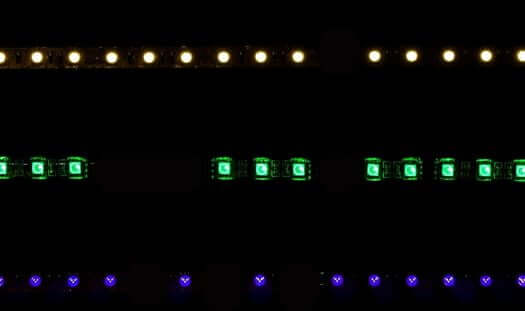
Common Causes of Flickering LED Strips
1. Loose or poor connections
This is the most common cause. Clip-on connectors that aren't fully closed, strips that have slipped out of their connector, loose screw terminals, and weak solder joints all interrupt the current.
Signs: Flicker that changes when you touch or move a connector or cable, or a strip that cuts out after a certain point.
2. An undersized, overloaded, or failing power supply
If the power supply can't deliver enough current, the strip may flicker, especially at high brightness, when it's set to white, or when it's first switched on. Cheap power supplies can also fail over time.
Signs: Flicker when switching on or at full brightness that improves when you dim the strip, a power supply that runs very hot, or a buzzing adapter.
3. Voltage drop on long runs
Long strips lose voltage along their thin copper traces, so the far end gets less power.
Signs: The far end is dimmer, yellowish, or flickers, while the start is fine.
Typical limits: about 5 m (16 ft) for 12V strips and 10 m (33 ft) for 24V strips, fed from one end.
4. An incompatible dimmer or controller
Standard wall dimmers designed for old incandescent bulbs don't work properly with low-voltage strips on an ordinary power supply. Mismatched controllers and power supplies can also cause flicker, and so can cheap controllers that switch the LEDs on and off too slowly.
5. Overheating
Strips mounted on surfaces that hold heat, covered strips, or strips left running on the reel can get hot enough to flicker, dim, or fail early. You can read more about LED overheating causes and fixes.
6. Damaged strip sections
Sharp bends, kinks, cracks, crushed sections, or a cut made off the marked line can damage the circuit.
Signs: Flicker or dark spots that start at one particular point on the strip.
7. Moisture or corrosion
Water, condensation, or humidity can corrode non-waterproof strips and connectors, especially in kitchens, bathrooms, and outdoors.
8. Data-signal problems (addressable strips)
Addressable strips, such as WS2812B or SK6812 types that can show different colors on each LED, are sensitive to their data signal. Common causes of flicker and random colors include:
- A missing common ground between the controller and the strip's power supply
- A long or noisy data wire between the controller and the first LED
- No data resistor or level shifter in DIY setups
- Not enough power when many LEDs are lit white at full brightness
9. Electrical interference
Occasionally, other devices, such as large motors, other smart devices, or a poor-quality power supply sharing a circuit, can cause interference, particularly with wireless remotes and data lines.
How to Fix Flickering LED Strip Lights
Work through these steps in order:
- Unplug and check every connection. Re-seat clip-on connectors so the pads line up under the contacts and the clip snaps fully shut. Tighten screw terminals and re-solder any weak joints.
- Check the power supply rating. Multiply the strip's watts per meter by its length, and make sure the power supply is rated for at least 20% more than that. If not, upgrade it. Make sure the voltage matches the strip.
- Try a different power supply. If you have a known-good one, swap it in. If the flicker stops, the old one was faulty or too small.
- Test at lower brightness. If flicker stops when you dim the strip, it's almost certainly a power or voltage-drop issue.
- Measure the voltage with a multimeter at the start and end of the strip, if you have one. A big drop at the far end confirms voltage drop.
- Fix voltage drop. Shorten the run, feed power to both ends or the middle (power injection), use thicker wire, or run separate wires to each section.
- Check the dimmer or controller. Make sure it's compatible with your strip and power supply. For smooth dimming, use an LED controller or a dimmable driver designed for LED strips. Replace cheap controllers that cause camera flicker with a better-quality one.
- Inspect the strip. Look for kinks, cracks, burn marks, or water damage. Cut out a bad section only at the marked cut lines, or remove and reuse LED strip lights if the damage is widespread and the strip has to come down.
- Let it cool. Unroll any strip that's still on its reel, and mount strips on an aluminum channel or another surface that carries heat away.
- For addressable strips: Connect a common ground, keep the data wire short, add a small resistor (around 220–470 Ω) on the data line, use a level shifter if needed, and add a large capacitor across the power supply terminals near the strip.
Safety: Always unplug before working on connections. If your strip is mains-powered, or you need to change wiring in the wall, use a qualified electrician.
How to Prevent Flickering
- Buy good-quality strips, power supplies, and controllers from reputable brands. Look for flicker-free or high-frequency PWM controllers.
- Size the power supply properly, with at least 20% headroom.
- Keep runs within the recommended lengths, or add power injection.
- Use secure, correctly sized connectors, or solder joints that are made properly.
- Never run a strip while it's still on the reel, and give strips a way to shed heat.
- Use waterproof (IP-rated) strips and connectors in damp areas.
- Use dimmers and controllers designed for LED strips.
- Inspect connections now and then, especially if the strip gets knocked or moved.
Quick Troubleshooting Guide
| Symptom | Likely cause | Fix |
|---|---|---|
| Flickers when you touch or move the cable | Loose connection | Re-seat or re-solder the joint |
| Flickers at full brightness, or when set to white | Undersized power supply | Use a larger supply, at least 20% above the load |
| Far end dim, yellow, or flickering | Voltage drop | Feed power in more than one place, or shorten the run |
| Flickers only on camera | Slow PWM | Use a better controller or dimmer |
| Flicker starts at one point | Damaged section | Cut it out at the marked cut lines |
| Random flashing colors on an addressable strip | Data or ground problem | Share a ground, and keep the data wire short |
| Buzzing power supply or controller | Overload or poor quality | Replace the supply or controller |